Parcel Search
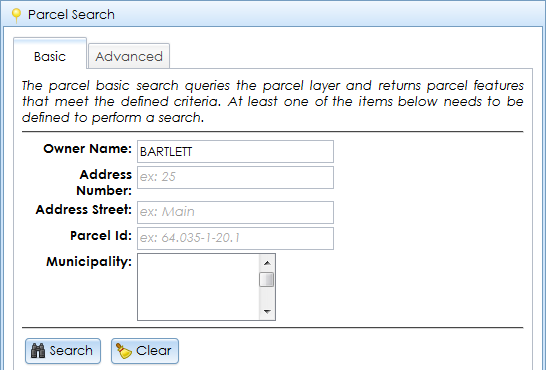
The Parcel Search function allows you to find parcels based on database attribute values in the parcels layer. The Basic search lets you select using attributes such as owner name, address, and parcel ID. The Advanced search includes options for searching based on attributes like land use type, property class, and acreage.
Click the Parcel Search panel to open the options window. With the Basic tab selected, type one or more text strings into the appropriate criteria boxes (e.g., Owner Name: “Smith”). You can also enter a partial string for each value (e.g., entering “View” for the Street Address value would return all streets with “view” in the street name, including, for example, Riverview, Viewcrest, etc.) Search in all municipalities, or select a specific municipality to limit the search results. Click the Search button to perform the query.
The records that match the basic or advanced selection criteria will appear in the Data Results panel. The number of records found will be listed at the top of the panel. Each feature selected on the map will have a corresponding record in the Data Results table. Scroll down through the records using the side scroll bar to the right.
From this results panel, there are a number of functions available for viewing parcel data. These can be accessed by clicking on icons within each parcel record.
Using these icons, the following operations can be performed:
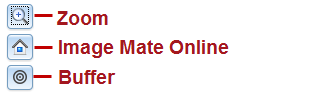
Zoom – Click the Zoom icon for any record to zoom to the extent of that feature.
Image Mate Online - Click the Image Mate Online icon to view the record. NOTE: this may require an account login
Buffer – Click the Buffer icon to select parcels within the buffer area (listed next to each record in the data results panel.) NOTE: this function will create a new set of selected features that fall within the specified buffer. Change the buffer settings (distance, units and target) as necessary.
Other Functions available at the top of data results panel are:
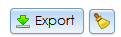
Export - The Export function saves the records as a .csv (comma separated values) file. The file can be opened or saved for later use.
Clear - Select the clear icon to clear the search results.